Message
Last updated: April 14, 2025
The Message step sends a plain SMS or MMS message. It’s your most flexible tool for open-ended communication, non-commerce messages, and conversational engagement.
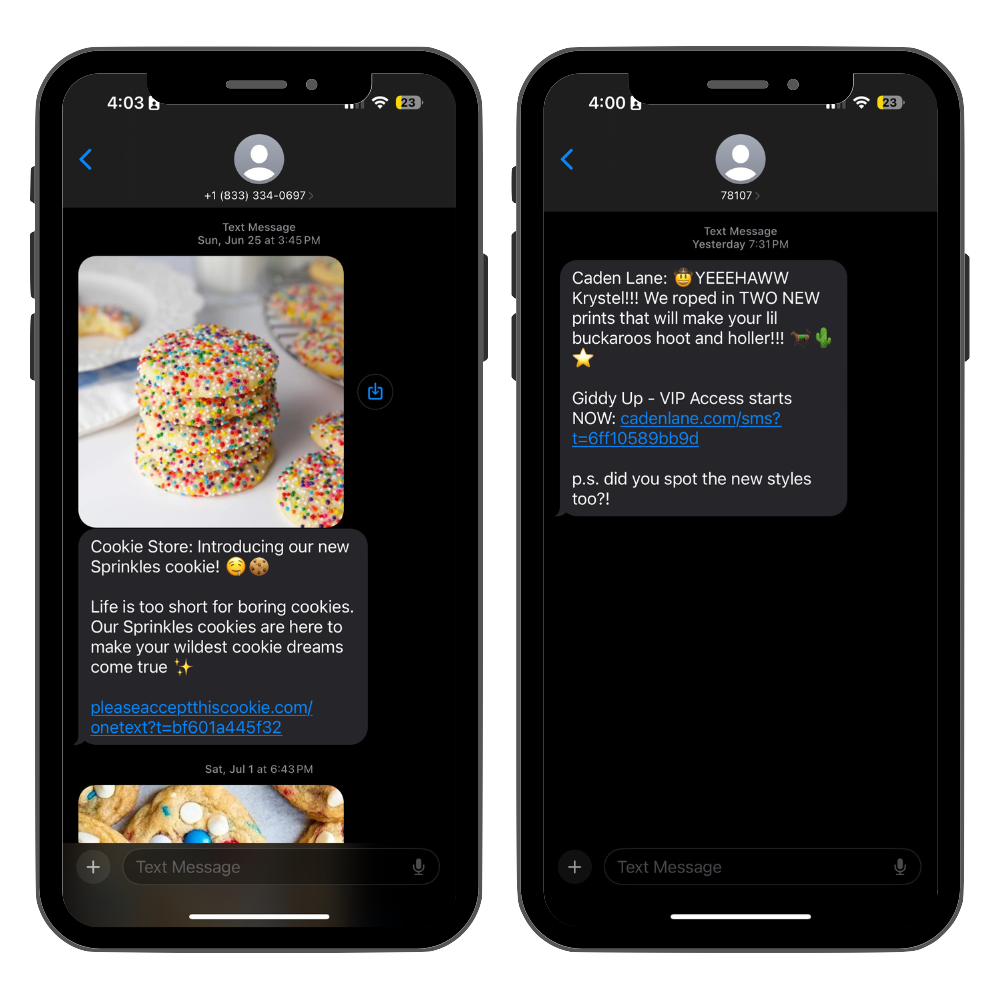
When to use it:
Welcome messages or brand intros
Updates or event reminders
Soft asks like “What are you shopping for today?”
Announcements (e.g., gift guides, holiday hours)
Driving traffic to your website using a link
How to use it:
Draft Your Content
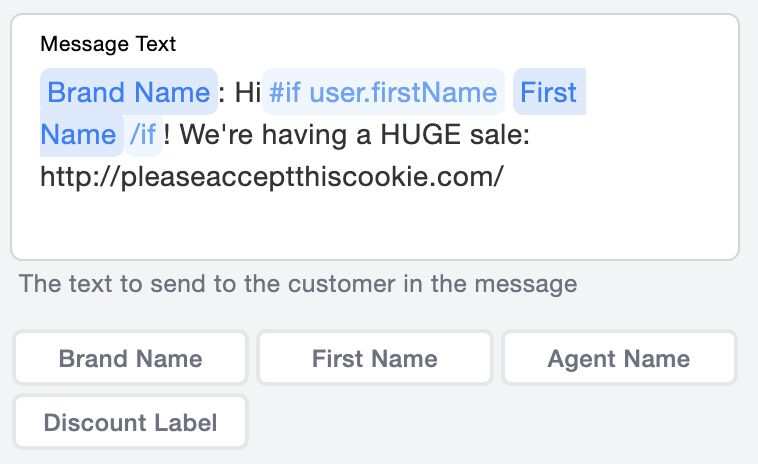
Add message copy and a link to the site.
Use personalization variables for First Name, Agent Name, etc.
Add a Discount Incentive
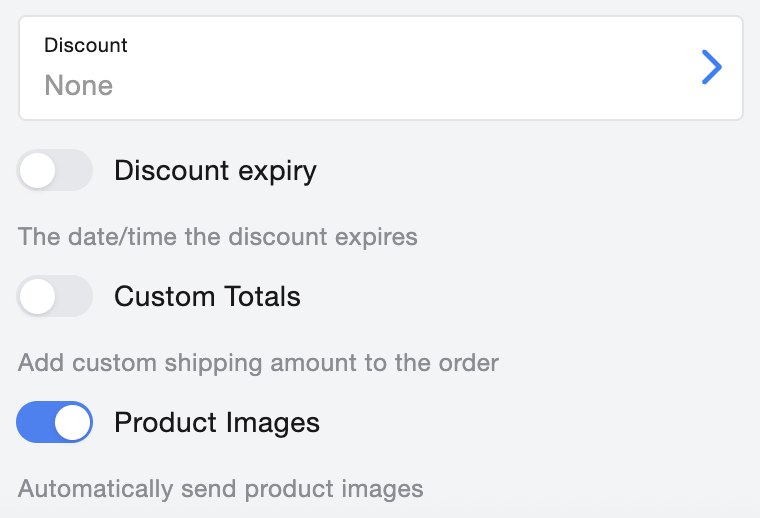
If you are running a sale, you can include a discount percentage or code from the dropdown menu. This discount will apply only to text-to-buy orders.
To embed a discount code in the link, read our guide here.
What it supports:
Text, image, and emoji content
Variables (like first name or agent name)
Dynamic links (e.g., UTM-tagged URLs)
AI-triggering behavior: if the customer replies, it can pass the response to our AI for assistance or next steps
Optional manual tagging using custom profile properties
What it doesn’t do:
No purchase logic or cart generation
No text-to-buy behavior
Best practice:
Use this step when you want to spark a conversation, send a general update, or direct shoppers to your site—not when you want to sell a specific item via SMS.